
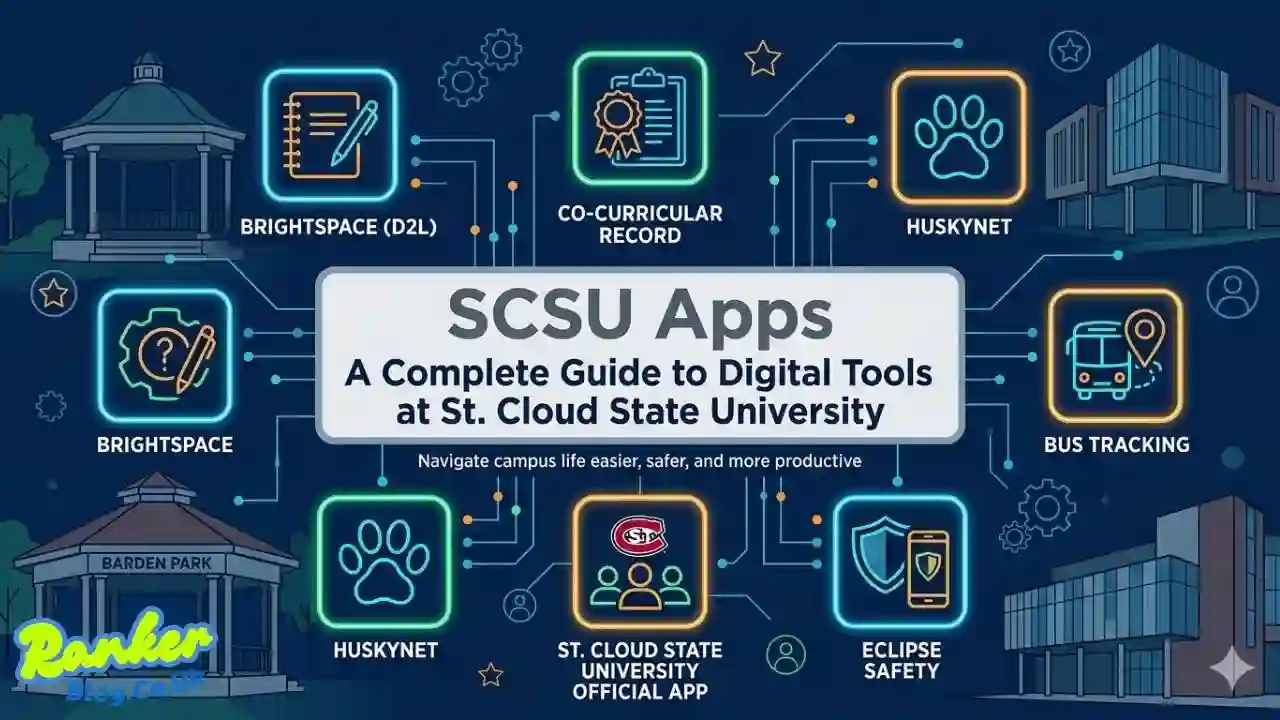
St. Cloud State University has built a rich digital ecosystem designed to make campus life easier, safer, and more productive. Whether someone is just starting their journey as a Husky or has been part of the SCSU community for years, knowing how to navigate the full suite of SCSU apps can make a huge difference in day-to-day academic life. From learning management systems to campus safety tools, this guide walks through everything available — and how to make the most of it all.
What Are SCSU Apps and Why Do They Matter?
When people talk about SCSU apps, they’re referring to the wide range of digital tools and platforms officially supported by St. Cloud State University for students, faculty, and staff. These include learning platforms, productivity software, safety apps, and administrative portals — all designed to support education both inside and outside the classroom.
In today’s world, digital access is not a luxury — it’s a necessity. Having the right tools means students can attend virtual classes, submit assignments, collaborate on projects, and stay safe on campus, all from their devices. The university’s tech ecosystem is built with that in mind, offering everything from remote software access to real-time emergency alerts.
Academic & Learning Apps
D2L Brightspace: The Core Learning Platform
At the heart of SCSU’s academic technology is D2L Brightspace, the online learning management system used across all Minnesota State campuses. Every course with an assigned instructor automatically receives a web-based shell within D2L, giving instructors a flexible space to post syllabi, announcements, quizzes, assignments, gradebook entries, and more.
For students, D2L is the go-to hub for coursework. Whether someone is in a face-to-face class, a blended format, or a fully online program, D2L Brightspace keeps everything organized in one place.
Distance Learning Tools and Flexibility
St. Cloud State offers a wide variety of distance learning opportunities, both on campus and at remote locations. This gives students greater flexibility in scheduling and a broader range of course options — something especially valuable for working adults or those who can’t always be on campus.
How to Log In and Get Started
Students and faculty can access D2L through their StarID credentials. If there are any course combination needs, requests can be directed to D2L@stcloudstate.edu or the Minnesota State System-Wide Help Desk at 877-466-6728.
Software & Apps Access: AppsAnywhere
What Is AppsAnywhere?
One of the most powerful features within the SCSU apps ecosystem is AppsAnywhere — a remote service that gives students, faculty, and staff access to a wide range of software titles provided by the university. It runs on a Windows platform through the Microsoft Azure Virtual Desktop system and requires a stable internet connection.
After logging in, users are connected remotely to a Windows 11 environment where they can access most SCSU-provided software through a web browser. The full Windows desktop is available, including apps accessible from the Start menu. It’s essentially a virtual computer lab that anyone can use from anywhere.
Direct Install vs. AppsAnywhere vs. Personal Downloads
SCSU provides software access through three main channels:
- Direct Install — Software installed directly onto university-owned computers in labs and offices.
- AppsAnywhere — Remote cloud-based access for students and staff, ideal for personal devices without needing to install anything locally.
- Personal Downloads — Available via the myHuskyNet portal, these are software titles students can download and install on their own personal computers.
Each method serves a different need, so it’s worth knowing which one works best for a particular situation.
How to Access AppsAnywhere Step by Step
- Visit the SCSU ITS page at stcloudstate.edu/its
- Navigate to the AppsAnywhere section
- Log in using your StarID@minnstate.edu credentials
- Connect to the virtual Windows 11 desktop
- Launch any available application from the Start menu or browser interface
Microsoft & Productivity Apps
Microsoft Office 365
One of the most-used tools across the SCSU apps lineup is Microsoft Office 365. Students and staff can access Word, Excel, and PowerPoint by visiting portal.office.com and signing in with their @minnstate.edu or @go.minnstate.edu account. It’s a full, cloud-connected version of Office — no separate purchase needed.
Azure Dev Tools for Education
Students also have access to Microsoft Windows through Azure Dev Tools for Education, available with a @go.minnstate.edu login. This is a great resource for students in tech, engineering, and computer science programs.
Personal Software Downloads via myHuskyNet
The myHuskyNet portal is another essential stop for anyone exploring my apps SCSU resources. It provides access to personal software downloads that can be installed on home computers, making it easy to stay productive no matter where studying happens.
Adobe Creative Cloud
Who Can Access It?
Adobe Creative Cloud is available to SCSU students, faculty, and staff — a significant benefit for anyone working in creative fields like graphic design, video production, digital marketing, or photography.
New Sign-In Requirements
It’s worth noting that Adobe Creative Cloud has a new sign-in requirement in place. Users should check with SCSU ITS for the most current instructions on how to authenticate properly to avoid any access issues.
Use Cases
Adobe Creative Cloud includes industry-standard tools like Photoshop, Illustrator, Premiere Pro, and InDesign. Whether someone is editing a video for a class project, designing a campus poster, or building a digital portfolio, the Creative Cloud suite has them covered.
Admissions & Registration Apps
Graduate Admissions
For prospective graduate students, the application process runs through the Centralized Application Service (CAS). Applicants are directed to program-specific portals, and application fees are $50 for most programs. The Graduate Admissions team at SCSU takes a full-service, student-centered approach to guide applicants through every step.
Undergraduate Admissions
Great news for prospective Huskies: applying to SCSU as an undergraduate is completely free. The university no longer requires an application fee — applications are accepted all day, every day. First-time students with no prior college credits are also guaranteed admission if they meet standard academic requirements, making SCSU a highly accessible option.
myHuskyNet Portal
Beyond admissions, the myHuskyNet portal serves as the central hub for registration, academic records, financial aid, and student services. It’s a one-stop-shop that every SCSU student should bookmark from day one. Anyone looking for my apps SCSU resources will find myHuskyNet to be one of the most used tools throughout their time at the university.
Campus Safety App — Safe@St.Cloud
The Official SCSU Safety App
Safety is a top priority at St. Cloud State, and the Safe@St.Cloud app reflects that commitment. It is the official safety scsu app of the university and the only app that fully integrates with SCSU’s safety and security systems. SCSU Public Safety developed it specifically to give students, faculty, and staff added security while on campus.
Key Features
Safe@St.Cloud is packed with practical features:
- Mobile Bluelight — Sends the user’s real-time location to SCSU security in case of a crisis
- Emergency Contacts — Quick access to the right services for campus and local emergencies
- Safety Notifications — Instant alerts and instructions from campus safety during on-campus emergencies
- Campus Map — Helps users navigate safely around campus
- Safety Resources — All important campus safety resources available in one convenient place
How to Download
Safe@St.Cloud is available on iOS through the App Store. It’s a free download and takes just a few minutes to set up. Every student is encouraged to have it installed — it’s one of the most important scsu apps for anyone spending time on campus.
Athletics App
Stay Connected with the Huskies
SCSU sports fans don’t have to miss a thing thanks to the St. Cloud State Athletics App. It provides access to Huskies sports content, game tickets, and the NSIC Network — all from a smartphone. Whether it’s men’s hockey, basketball, or any other Huskies team, the athletics app keeps fans in the loop on scores, schedules, highlights, and more.
It’s a great example of how scsu.edu apps extend beyond academics to support the full campus experience — including school spirit and community connection.
IT Support & Software Requests
Requesting New Software
The SCSU ITS team has a clear process for software requests. All software — regardless of cost — must go through a security and legal review of Terms & Conditions before being approved for use on campus systems. To request new software, anyone can send an email to ITSPurchasing@stcloudstate.edu with the following details:
- Name of the software
- URL or link to the software
- Price and licensing information
- Basic description of how it will be used
ITS typically reviews requests within 1–2 business days. If there are any compatibility concerns, they’ll follow up with the requester directly.
Where to Get Tech Help
For general tech support, SCSU’s Information Technology Services team is the primary resource. Students and staff can visit stcloudstate.edu/its to find documentation, submit tickets, or explore the full catalog of available scsu.edu apps and services.
Tips for Getting the Most Out of SCSU Apps
Getting the full value from the university’s digital ecosystem is easier when a few key habits are in place:
- Use your StarID consistently — Almost every platform, from SCSU apps login to D2L to myHuskyNet, uses StarID credentials. Keeping that login information handy saves time and frustration.
- Keep software updated — Regular updates keep devices secure and ensure compatibility with university systems.
- Bookmark key portals — myHuskyNet, D2L Brightspace, and AppsAnywhere should all be saved for quick access. These are the three platforms most students visit on a daily or weekly basis.
- Reach out to ITS early — If there’s ever a problem with installation, access, or a software request, the ITS team is there to help. Don’t wait until the last minute before a deadline.
- Explore all options — Many students don’t realize the full range of what’s available. From Adobe Creative Cloud to the athletics app, taking time to explore the scsu apps login portal and myHuskyNet can reveal tools that make campus life significantly easier.
Conclusion
St. Cloud State University has invested heavily in building a digital ecosystem that truly supports its community. From powerful academic platforms like D2L Brightspace and AppsAnywhere to practical tools like the Safe@St.Cloud safety app and the Athletics App, the full range of SCSU apps covers nearly every aspect of campus life.
Whether someone is a brand-new student figuring out their first SCSU apps login, a faculty member looking for remote software access, or a staff member requesting new tools through ITS, there’s a clear path forward. The key is knowing what’s available — and this guide is a great starting point.
For more information, visit stcloudstate.edu/its or download Safe@St.Cloud from the App Store today. The Huskies community has everything it needs to thrive — digitally and beyond.
Also Read: How To Use SEC Resources Without Getting Overwhelmed